01
Feb

Solving the WordPress Remove Blank Line From RSS Feed OR WordPress error on line 2 at column 6 OR XML declaration allowed only at the start of the document

WordPress has a funny way of making a day challenging.  Especially when you wake up one morning to find all of your RSS feeds suddenly not feeding.  For my blog readers, if this is becoming a familiar rant to you (see Solution #1 and Solution #2), never fear – there is answer if we keep digging and mining for it.

In the past two solutions to our WordPress Remove the Blank Line from the RSS Feed, we added a fix all plugin and we learned how to validate, but the problem refused to remain fixed.  It’s time for a radical new answer. Relax.  This will be simple.

1.  Download the following file:  http://wejn.org/stuff/wejnswpwhitespacefix.php.
Yeah, I was concerned it contained a bunch of viruses, too, but after checking through (and using it on a client’s site), it passes the test.

2.  Upload ejnswpwhitespacefix.php file to your WordPress installation ROOT directory.  You’ll see the wp-config.php file there as well.  You DO NOT want to upload into the theme file or any place else . . .just the ROOT directory of your WordPress.

3.  Edit the index.php file.  You’ll find this in your root directory as well.  Add the following as the second line and right after the <?php
include(“wejnswpwhitespacefix.php”);

While your exact index.php code may vary, you’ll probably have something like this when you’re done:

<?php
include(“wejnswpwhitespacefix.php”);
define(‘WP_USE_THEMES’, true);
require(‘./wp-blog-header.php’);
?>

Don’t forget to save the index.php page.

4.  Reload the RSS Feed and shzammm . . . it’s working again!


31
Jan

How to Validate Your WordPress Feed

Once again WordPress decided to stopped the RSS feed for a client.  There doesn’t seem to be any rhyme or reason.  Whether it is WordPress updates or installing new plugins, occasionally and unpredictably, the RSS feed continues to get a that nasty EXTRA space at the beginning of the XML.

I shared my first revelations here describing how to add the Fix RSS Feeds Plugin to your site.  However, eventually even this plugin no longer solved our RSS feed issues.

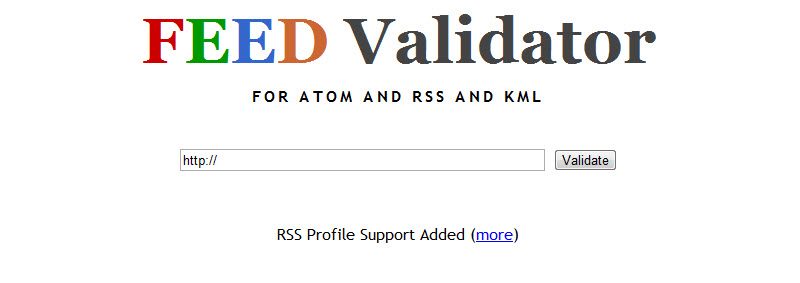
One fix is to uninstall recently installed plugins to determine if they are the source.  But in doing this how do you verify the RSS is once again feeding properly?  I recommend using an FEED validator.  The one I used with the most success has been

http://feedvalidator.org

Feed Validator

Enter the URL of the website feed you’d like to verify.  You only need to enter the website (www.example.com) – not the feed (www.example.com/feed/).

If your feed is successfully validated, you’ll get a cool icon you can add to your website.

Now we have a way to simply verify our RSS feeds are feeding out the way they should.


30
Jan

Delete Post Revisions in WordPress

Sometimes I forget WordPress is based on a database so it needs a bit of cleaning up once in awhile.  Some of the clutter comes from endless revisions WordPress stores.  While it has saved me many times to have a recent revision of a blog to go back to, having 100 revisions is quite a bit of overkill.  In addition to the text of the post itself, WordPress saves tags, meta information and more.

For revision intensive websites, I’ve begun enacting two changes to rein in the quantity of website slowing revisions.

Install Better Delete Plugin

The Better Delete plugin replaces an old favorite, Delete Revisions plugin, that wasn’t working with the latest versions of WordPress.  Better Delete made some important improvements to better reduce the WordPress database size and speed up the website.

Download Better Delete Plugin

Reduce Revisions Being Saved by WordPress

If you never have the problem of too many revisions, you won’t have to delete them.  After deleting the old revisions from the database, we want to do a bit of preventative medicine to prevent having to repeat this action regularly.  However, it does take a bit of coding.

Find the wp-config.php file.  It’s in the root directory of your WordPress installation).

I added the following code to wp-config.php file:

define(‘WP_POST_REVISIONS’, 3);
define(‘AUTOSAVE_INTERVAL’, 120);

WP_POST_REVISIONS defines the number of post revisions that is saved. I selected “3,” but have seldom needed more than two.

AUTOSAVE_INTERVAL changes the time between automatically saving revisions.  I changed it from 30 to 120 seconds.

Save the wp-config.php file.


21
Dec

Can your website and Facebook be friends (or at least friendly)?

In local websites and websites at large, the integration of social media into the website creates a challenge.  The way you can integrate is constantly changing so it is important to stay up to date.

I came across a great post at Social Media Examiner.  They share 10 Ways to Integrate Facebook into Your Website.   At first, I thought ten ways was a little overboard, but then I read through the entire list.  I was at the bottom of the list of ten before I came across a method I hadn’t used in a website.  What a surprise!  This journey reinforced my view that there are so many ways to include social media in your website – sometimes TOO many ways.

For a local website, let’s consider WHY you want Facebook on your website.  First and foremost, you want it to create and grow relationships with current and future customers.  Having a LIKE button on your website gives your website readers a way to link into your Facebook page.  By LIKING you from your website, they’re saying they’d like to hear more.  If you are posting and responding on your FB page, you’ll be solidifying your customer relationships.

Another reason to have Facebook on your website is to continue the conversation.  There are different strokes for different folks – even with social media.  Some folks like to get a glimpse of what’s going on with you and your company all in one place.  By having your Facebook conversations on your blog, you can draw your website customers into the conversation.

Finally, one of the biggest values of Facebook is the viral marketing aspect.  By placing a SEND button on your website pages, you encourage the website reader to share what they’ve seen with other friends.  Put up some great local content on your website and it may go viral.  Even a little viral goes a long way in drawing more visitors to your website and even your storefront.

While you can include Facebook in at least 10 different ways into your website, consider WHY you want to use each method and then apply it (or have your webmaster do it for you).   Either way, get your Facebook page and your website friendly with each other to create and build better relationships with your current and future customers.


21
Aug

How to Fix RSS Feed Errors in WordPress

You want your blog to go out to everybody and everyone. Without the RSS feed, your website may just be sitting there. Make sure it is work for you and sharing your great content far and wide.

21
Mar

How to Tag a Photo on a Facebook Fanpage

Tagging friends in photos can be a great way to share photos, but how can use it in your business. Facebook Fanpages or business pages don’t permit you tag, but you CAN tag your personal friends if you access your page as an administrator. Enjoy the step by step below. Don’t forget to share your ideas for tagging in your Facebook fanpage in the comments below . . .

10
Mar

Adding a PAYPAL Donate Button to Your WordPress Website

Another great “HOW TO” lesson today.  Sometimes you just need a quick way for customers to give to your non-profit or to support your free work.  Paypal offers a quick resource to enable online credit card transactions without a lot of fuss.  This tutorial assumes you already have a PAYPAL account.  If you don’t, click here for PAYPAL and get your account started.

06
Mar

Adding a Sitemap to Your Website with FileZilla FTP

Sitemaps are important to help search engines know where to roam on your website. While there are lots of ways to generate the sitemap, I’d like to show you how to move it to your website. I’ve also included adding your site map to Google’s Webmaster Tools. By the way, the file for your site map is usually called:

sitemap.xml

If you were able to make this work for you, enter your website in the comments below to let everyone know it worked!

05
Mar

Get Another Administrator for Your Facebook Fanpage

Don’t be caught being the ONLY person who can edit your Facebook Fanpage. Whether you’re on vacation, sick with the flu, or just need your assistant to make directed changes, at some point, you will need another administrator for your page. Take a look and see the step by step . . . When you’re done, be sure to leave a comment sharing why YOU need another administrator on your Facebook Business page.

30
Nov

Add An Image to Your WordPress Blog Post – Part 2 The Tricks

After the basics of inserting an image, explore a little more information to help you format your image and create a better graphic experience on your blog.